Guide to Map Icons and Decorations in Minecraft: NBT, Banners, and Waypoints
Guide to Map Icons and Decorations in Minecraft: NBT, Banners, and Waypoints
Minecraft maps are invaluable tools for navigation, cartography, and building control rooms in survival bases. Placing maps in item frames to create "Map Walls" (giant map grids) is one of the most coveted decorations on multiplayer servers. However, the true potential of maps is unlocked when we start using custom decorations and icons — such as marking your base's exact location with a red target, a shipwreck with a cross, or an XP farm with a colored flag.
Although the game offers native support for these markers, the process of generating them via NBT commands or setting them up manually using banners in survival mode is poorly documented and full of technical quirks. In this comprehensive guide, we will explain the mathematical logic of icon coordinate mapping, the NBT tags to generate maps with custom markers, and how to create a complete waypoint system without mods.
1. The Pain of Navigating and Marking Key Points on Maps Manually
Most players attempting to use Minecraft maps for advanced navigation encounter chronic difficulties:
- Loss of Reference: As your world grows and you explore thousands of blocks, the tiny player indicator on the map is not enough to differentiate where the iron farm, villager trading hall, Nether portal, or mine entrance are located.
- NBT Command Complexity: For adventure map creators, generating a map that comes in the player's inventory containing objective markers (like a temple or boss location) requires writing complex NBT structures with rigidly nested byte types and decimal coordinates.
- Survival Mode Limitations: In Survival mode, many players do not know how to register points of interest on their maps, ignoring legitimate game mechanics involving the combined use of anvils, colored banners, and right-clicks with maps.
2. The Manual Method: Mathematics and Syntax of Map Decorations
To create and understand how Minecraft stores map icons (known internally as Decorations), we must explore the two available methods: the command method (NBT) and the physical method (Banners).
1. The NBT Syntax of Map Decorations
Each map item in the game can contain a list of markers in its NBT data. The tag that stores this information is called Decorations.
The basic structure of a command to give yourself a map with a custom marker in classic Java Edition is:
/give @p minecraft:filled_map{Decorations:[{id:\"base\",type:2b,x:10.0,z:5.0,rot:180.0}]} 1
In modern versions of the game (1.20.5+), the format has been adjusted to the new component syntax:
/give @p minecraft:filled_map[map_decorations={base={type:\"target_red\",x:10.0,z:5.0,rotation:180.0f}}] 1
Icon Types and Values (Java Edition)
The type parameter defines the graphic look of the icon displayed on the map. Here are the main types represented by bytes (b):
0b(White Pointer): The classic player indicator.1b(Green Pointer): Other players' marker (used on shared maps in multiplayer).02b(Red Pointer / Waypoint): A red triangle, ideal for signaling danger or enemy bases.03b(Blue Pointer): A blue marker, excellent for rivers, ports, or water bases.04b(White Cross): A white cross, commonly used to mark buried treasure or ancient monuments.05b(Red Bullseye): A red attack target, used for adventure scenarios or team battles.06b(Match / Monument): A small house/monument icon.07b(Mansion): The official icon used to mark the Woodland Mansion.08b(Monument): The official icon used to mark the Ocean Monument.09b(Banners): Colored flag markers. These vary according to the traditional dye colors (white, orange, magenta, light blue, etc.).
2. Map Coordinate Calculations
A very common mistake is attempting to use global game block coordinates ($X$ and $Z$) directly in the x and z fields of the map's decoration tag.
Minecraft's map coordinate system operates on a local scale that ranges from $-127.5$ to $+127.5$ relative to the center of the map, regardless of the map's zoom level (scale).
To map a global block coordinate ($X_{block}$) to the map's internal coordinate ($X_{map}$), the formula is:
$$X_{map} = \frac{X_{block} - X_{center}}{2^{Scale}}$$
Where:
- $X_{center}$ is the X coordinate of the center where the map was generated.
- $Scale$ is the zoom level of the map (ranging from 0 to 4).
- Level 0: 1 block per pixel (1:1 scale).
- Level 1: 2 blocks per pixel (1:2 scale).
- Level 2: 4 blocks per pixel (1:4 scale).
- Level 3: 8 blocks per pixel (1:8 scale).
- Level 4: 16 blocks per pixel (1:16 scale).
Performing this division and axis offset for multiple map points manually requires paper, a pen, and an active game coordinate overlay (F3).
3. The Smart Solution: Minepax Map Icons Gallery
Instead of memorizing decoration byte numbers or doing pixel scale calculations to place markers in your commands, you can use our gallery and cartography reference tools.
The Minepax Map Icons Gallery provides a complete catalog of all available map markers in Minecraft with their codes and design applications.
What you find in our gallery:
- Complete ID Tables: Visually identify all pointer types, mansion markers, monuments, and colored banners with their respective NBT byte values and modern strings.
- Map Command Generator: Input your base's real coordinates, choose the icon, and generate the exact
/givecommand ready to paste into your server console. - Practical Examples: Ready-to-use map models with custom treasure markers to enrich your RPG or adventure server quests.
🗺️ Customize Your Server's Navigation
Stop getting lost in your own world. Access our complete decorations gallery and create custom maps with perfect icons in seconds!
4. Advanced Tips for Creating Waypoint Systems in Survival
If you play without cheats in classic Survival mode on Java Edition, you can create a complete waypoint system using the official Banners mechanic:
1. Creating Colored and Named Map Markers
You can register banners on your map that function as permanent navigation waypoints.
- Craft a Banner in your desired color (e.g., blue for a harbor, green for a forest).
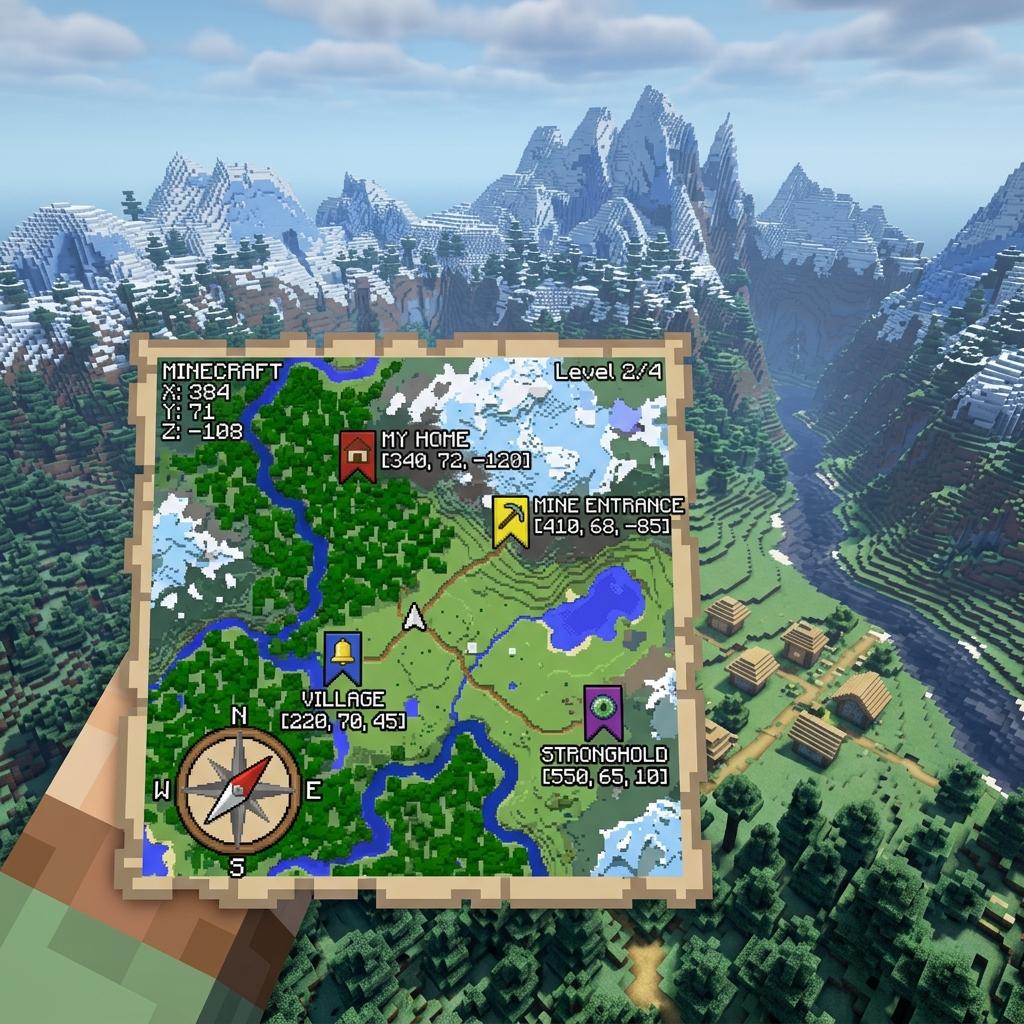
- Take the banner to an Anvil and rename it (e.g., "Mine Entrance" or "Main Base"). Renaming the banner makes the name appear directly below the icon on the map!
- Place the renamed banner on the ground at its global coordinates.
- Hold the map corresponding to the area and right-click directly on the placed banner.
- A banner icon with the corresponding color and the name you set will instantly appear on your map.
2. Removing Markers from the Map
If you tear down your base and want to remove the banner icon from the map, simply right-click again with the same map on the banner's coordinate (or where it was placed). The marker will be cleared from the map data instantly.
3. Invisible Item Frames
To create clean control rooms with realistic wall maps without the wood borders of item frames, you can summon invisible item frames behind the maps using commands:
/summon item_frame ~ ~ ~ {Invisible:1b,Item:{id:\"minecraft:filled_map\"}}
This gives the illusion that the map is floating or painted directly onto the stone or wood block wall of your base.